
The IELTS Computer-delivered test offers a modern, efficient testing experience with some unique advantages over the paper version. Understanding the digital format and knowing what to expect will help you perform your best on test day. This comprehensive guide covers everything you need to know about taking IELTS on computer. You can watch this YouTube video explainer by IELTS Guide Phil.
Before You Arrive
Essential Items to Bring
- Valid passport or national ID (the same document used during registration)
- Test confirmation email (printed or on your phone)
- Nothing else – all materials are provided at the test center
What to Leave at Home
- Mobile phones, smartwatches, and electronic devices
- Study materials and notes
- Food, drinks, and snacks
- Personal belongings (lockers provided)
- Pencils, pens, and paper (not needed for computer test)
Arrival and Check-in Process
Timing
Arrive 30 minutes to one hour before your scheduled test time. The computer-delivered test has more flexible scheduling, but punctuality remains crucial.
Security and Registration
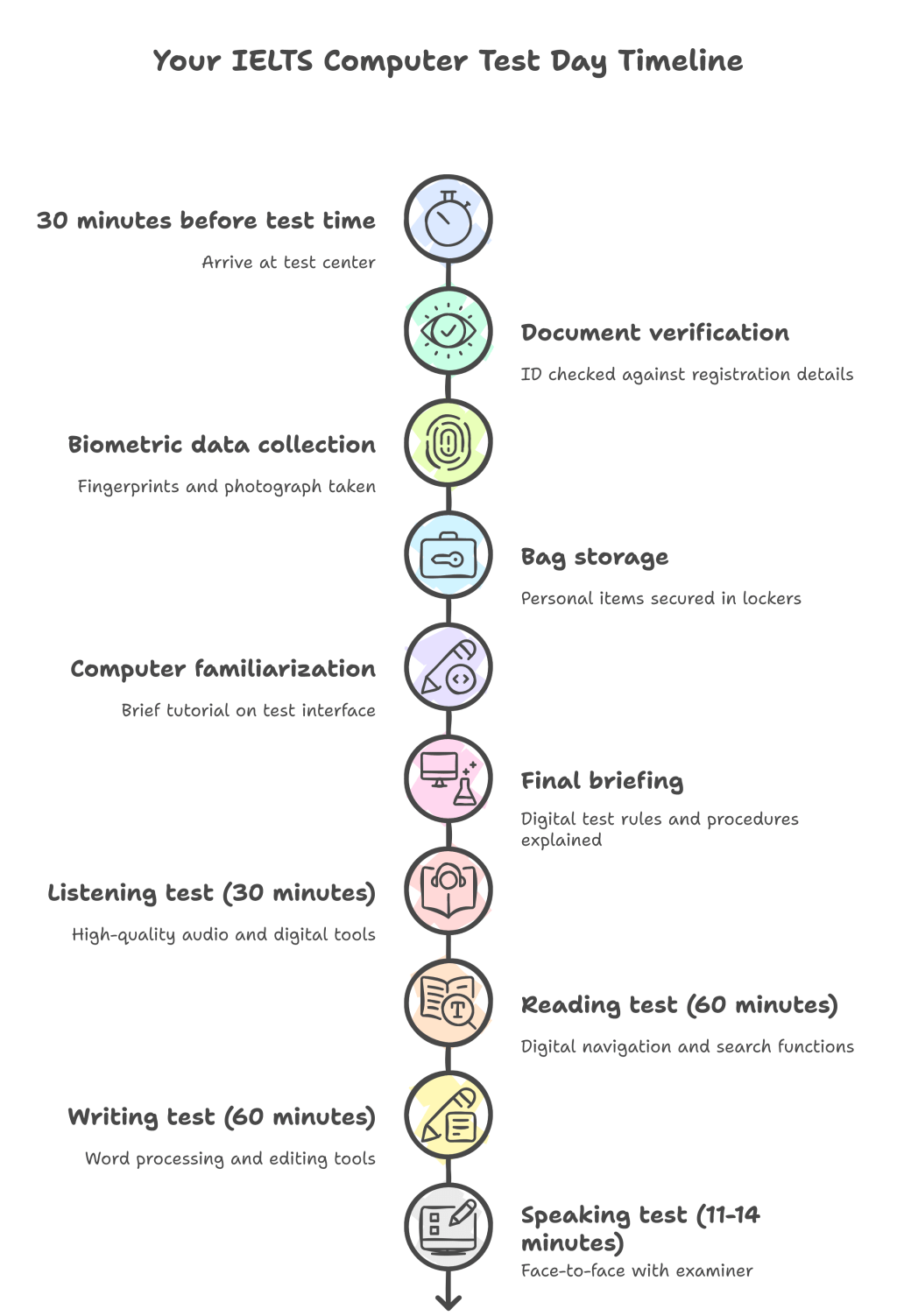
- Document verification: ID checked against registration details
- Biometric data collection: Fingerprints and photograph taken
- Bag storage: Personal items secured in provided lockers
- Computer familiarization: Brief tutorial on the test interface (optional but recommended)
- Final briefing: Digital test rules and procedures explained
Test Day Schedule Overview
Total duration: Approximately 2 hours and 45 minutes
- Listening: 30 minutes (no additional transfer time)
- Reading: 60 minutes
- Writing: 60 minutes
- Speaking: 11-14 minutes (video or face-to-face interview with examiner, same as paper test)
Your Digital Test Station
Hardware Setup
- Individual computer workstation with privacy screens
- Noise-canceling headphones for Listening section
- Ergonomic chair and adjustable desk
- On-screen timer visible throughout the test
- Help button for technical assistance
Software Interface
- Clean, user-friendly design optimized for test-taking
- Built-in tools: highlighter, note-taking, word counter
- Easy navigation between questions
- Automatic saving of all responses
Section-by-Section Breakdown
Listening Test (30 minutes)
Digital advantages:
- High-quality audio through noise-canceling headphones
- Individual volume control
- No transfer time needed – answers automatically saved
- Can review and change answers during each section
What happens:
- 4 sections of increasing difficulty
- Questions appear on screen as audio plays
- Click to select or type answers directly
- Automatic progression between sections
Key strategies:
- Adjust headphone volume during the sound check
- Use the note-taking feature for complex information
- Take advantage of being able to change answers within each section
- Use the highlighter tool to mark key information
Digital tools available:
- Highlighter: Mark important text in questions
- Notes panel: Jot down key information while listening
- Review function: Check answers before moving to next section
Reading Test (60 minutes)
Digital advantages:
- Easy scrolling through passages
- Search function to find specific words
- Zoom in/out capability for better readability
- Drag-and-drop functionality for matching questions
Academic version:
- 3 passages displayed on screen
- 40 questions with various interactive formats
- Smooth navigation between passages and questions
General Training version:
- Multiple short texts in Section 1
- Work-related texts in Section 2
- One longer text in Section 3
Digital features:
- Split screen: View passage and questions simultaneously
- Question palette: Jump to any question quickly
- Flag questions: Mark questions for review
- Word counter: Track responses for summary tasks
Navigation tips:
- Use the question palette to move efficiently between questions
- Flag difficult questions to return to later
- Take advantage of the search function to locate specific information
- Use split-screen view to reference text while answering
Writing Test (60 minutes)
Digital advantages:
- Full word processing capabilities
- Cut, copy, and paste functions
- Real-time word count
- Easy editing and revision
Task structure remains the same:
- Academic Task 1: Describe visual information (20 minutes, 150+ words)
- Academic Task 2: Essay response (40 minutes, 250+ words)
- General Training Task 1: Letter writing (20 minutes, 150+ words)
- General Training Task 2: Essay on general topic (40 minutes, 250+ words)
Digital writing tools:
- Spell check: Underlines misspelled words (but doesn’t provide corrections)
- Word counter: Real-time tracking visible at all times
- Formatting options: Bold, italics, underline available
- Undo/Redo: Easy correction of mistakes
- Copy/Paste: Efficient text manipulation
Writing strategies for computer:
- Type at a comfortable pace – no need to rush
- Use the word counter to monitor progress
- Take advantage of easy editing to improve your work
- Plan your structure before typing, but feel free to reorganize
- Don’t rely on spell check – it only identifies errors, doesn’t correct them
Speaking Test (11-14 minutes)
Important note: The Speaking test may be either a video or face-to-face interview with a certified examiner, identical to the paper-based version.
Test format unchanged:
- Part 1 (4-5 minutes): Personal questions and familiar topics
- Part 2 (3-4 minutes): Individual presentation with preparation time
- Part 3 (4-5 minutes): Abstract discussion related to Part 2 topic
Preparation notes:
- Paper and pen provided for Part 2 planning
- Same assessment criteria as paper-based test
- Recorded for quality assurance purposes
Essential Dos and Don’ts
DO:
- Familiarize yourself with basic computer operations beforehand
- Complete the optional tutorial at the test center
- Use digital tools (highlighter, notes, flags) strategically
- Take advantage of easy editing in Writing tasks
- Adjust your screen and chair for comfort
- Ask for technical help if needed
- Practice typing efficiently but accurately
DON’T:
- Assume you don’t need computer practice if you’re tech-savvy
- Rely entirely on spell check for Writing tasks
- Spend too much time perfecting formatting
- Worry if you’re not a fast typist – accuracy matters more than speed
- Ignore the on-screen timer
- Forget that Speaking is still face-to-face
- Try to access external programs or websites
Common Mistakes and How to Avoid Them
Listening Section Mistakes:
Mistake: Not using available review time within sections
Fix: Use the pause between sections to review and change answers
Mistake: Forgetting to adjust headphone volume
Fix: Set comfortable volume during the initial sound check
Reading Section Mistakes:
Mistake: Not using digital navigation tools effectively
Fix: Practice using split-screen view and question palette during preparation
Mistake: Over-relying on the search function
Fix: Read passages thoroughly first, then use search for specific details
Writing Section Mistakes:
Mistake: Spending too much time on formatting
Fix: Focus on content and language rather than perfect formatting
Mistake: Not monitoring word count regularly
Fix: Glance at the word counter periodically while writing
Mistake: Assuming spell check will catch all errors
Fix: Proofread carefully – spell check only identifies misspellings, not wrong word choices
Technical Mistakes:
Mistake: Not being familiar with basic computer functions
Fix: Practice typing, scrolling, and basic editing before test day
Mistake: Panicking over minor technical issues
Fix: Use the help button immediately if you encounter problems
Advantages of Computer-Delivered IELTS
Efficiency Benefits:
- Faster results: Scores available 3-5 days after the test
- No transfer time: Answers automatically saved in Listening
- Easy editing: Revise Writing tasks without messy corrections
- Better audio quality: Individual headphones with volume control
User Experience:
- Flexible scheduling: More test dates available
- Comfortable environment: Individual workstations with privacy
- Digital tools: Highlighter, notes, and navigation aids
- Clear display: Adjustable text size and screen brightness
Frequently Asked Questions
Q: Do I need to be good with computers to take this test? A: Basic computer skills are sufficient. If you can use email and browse the internet, you can handle the IELTS computer test.
Q: What if the computer crashes during my test? A: Technical support is always available. Your progress is automatically saved, and you’ll receive additional time if needed.
Q: Can I use keyboard shortcuts? A: Basic shortcuts like Ctrl+C (copy) and Ctrl+V (paste) work in Writing tasks, but complex shortcuts are disabled.
Q: Is the computer test harder than the paper test? A: The content and difficulty are identical. The format may feel different, but it’s not inherently harder or easier.
Q: Can I take notes during the Reading test? A: Yes, a digital notes panel is available throughout the test for your convenience.
Q: What if I’m a slow typist? A: You don’t need to be fast – accuracy is more important. Many successful candidates type slowly but thoughtfully.
Q: Are there practice tests available for the computer format? A: Yes, official IELTS practice tests for computer are available on the IELTS website.
Q: Can I change the font size? A: Yes, you can adjust text size and screen brightness for comfortable reading.
Q: What happens if I accidentally close a section? A: The system prevents accidental navigation. You’ll receive warnings before moving between sections.
Q: Is spell check available in all languages? A: Spell check, grammar check, and autocorrect are not available since spelling and grammar skills are assessed in IELTS Writing.
Technical Preparation Tips
Before Test Day:
- Practice typing for extended periods to build stamina
- Familiarize yourself with basic keyboard shortcuts
- Try online practice tests in computer format
- Ensure you’re comfortable with scrolling and navigation
During the Tutorial:
- Take the optional computer tutorial seriously
- Practice using all available tools (highlighter, notes, flags)
- Adjust screen settings to your preference
- Test audio levels with the headphones
If Technical Issues Arise:
- Don’t panic – raise your hand or use the help button
- Technical support is trained to resolve issues quickly
- Lost time due to technical problems will be compensated
- Your work is automatically saved every few seconds
Final Tips for Success
The night before:
- Get adequate rest (7-8 hours of sleep)
- Avoid intensive computer practice – light review only
- Prepare your identification documents
Test day morning:
- Eat a good breakfast for sustained concentration
- Arrive early but not excessively so
- Stay hydrated before entering the test room
During the test:
- Use the digital tools strategically, not obsessively
- Trust your English skills – the computer is just a medium
- Stay calm if you encounter minor technical glitches
- Focus on demonstrating your language ability
Remember: The computer-delivered IELTS tests the same English skills as the paper version. The digital format often provides a more comfortable and efficient testing experience, with tools designed to help rather than hinder your performance.
The key advantage of the computer test is that it allows you to focus more on your English and less on mechanical aspects like handwriting and transferring answers. Embrace the technology as a tool to showcase your language skills.
Good luck with your IELTS computer test! Trust in your preparation and let the digital format work to your advantage.
#IELTSGuidePhil #IELTSComputer #IELTSComputerDelivered #IELTS #IELTSPreparation #IELTSTestDay #EnglishTest #IELTSTips #DigitalIELTS #IELTSListening #IELTSReading #IELTSWriting #IELTSSpeaking #TestStrategy #EnglishProficiency #IELTSGuide #TestDay #LanguageLearning #IELTSSuccess #EnglishLearning #IELTSHelp #TestPreparation #ComputerBasedTest #DigitalTesting #IELTSOnline
 IELTS Guide Phil
Leave a comment