
Everything you need to know to succeed in your computer-based IELTS examination
What is IELTS on Computer?
IELTS on Computer (IELTS CD) is the digital version of the traditional paper-based IELTS test. It maintains the same format, difficulty level, and scoring system as the paper test, but uses a computer interface for the Listening, Reading, and Writing sections. The Speaking test remains face-to-face with an examiner.
Key Advantages of Computer-Based IELTS
Faster Results: Get your results in 3-5 days instead of 13 days More Test Dates: Available up to 3 times per week in most locations Familiar Interface: User-friendly design similar to common computer applications Built-in Tools: Word count, highlighting, and note-taking features Better Audio Quality: High-quality headphones for the Listening section
Pre-Test Preparation
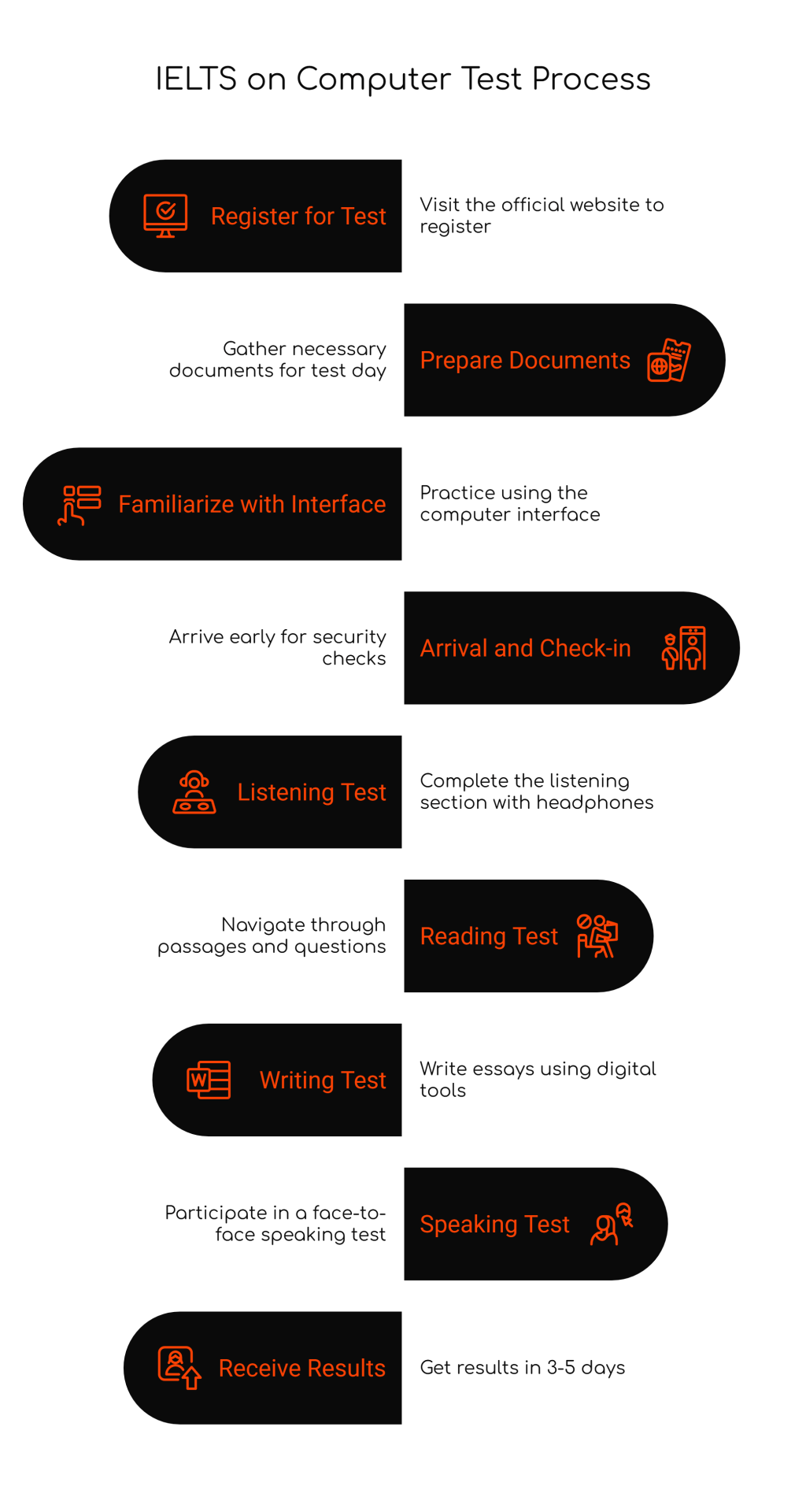
Step 1: Register for Your Test
- Visit the official IELTS website or authorized test centers
- Choose “IELTS on Computer” option
- Select your preferred test date and location
- Pay the test fee (varies by country)
- Receive confirmation email with test details
Step 2: Prepare Your Documents
Required on Test Day:
- Valid passport (primary ID)
- Test confirmation email
- Arrive 30 minutes before your scheduled time
Step 3: Familiarize Yourself with the Interface
- Complete the free IELTS on Computer familiarization test
- Practice using keyboard shortcuts
- Get comfortable with the digital tools available
Test Day: Step-by-Step Walkthrough
Arrival and Check-in Process
Step 1: Arrive Early
- Arrive 30 minutes before your test time
- Late arrivals may not be admitted
Step 2: Security Check
- Present your passport for verification
- Have your photo taken
- Go through security screening
- Store personal belongings in designated lockers
Step 3: Orientation
- Receive brief instructions about the computer interface
- Get assigned to your test station
- Put on provided headphones
Section 1: Listening Test (30 minutes)
Step 1: Setup
- Test your headphones with the volume control
- Ensure audio is clear and comfortable
- Get your pencil and paper for note-taking
Step 2: Test Structure
- Part 1: Conversation between two people (10 questions)
- Part 2: Monologue on everyday topics (10 questions)
- Part 3: Conversation among multiple people (10 questions)
- Part 4: Academic lecture or talk (10 questions)
Step 3: Navigation Tips
- Questions appear on screen as audio plays
- Click on answer fields to input responses
- Use provided paper for notes
- Review and change answers during the 10-minute review time
Step 4: Answer Transfer
- All answers are automatically saved
- No need to transfer answers to a separate sheet
- Double-check all responses before time expires
Section 2: Reading Test (60 minutes)
Step 1: Interface Overview
- Three passages with 40 questions total
- Text appears on the left, questions on the right
- Use scroll bars to navigate through passages
Step 2: Essential Tools
- Highlight Tool: Mark important information
- Notes Feature: Add personal notes to passages
- Review Panel: Track answered and unanswered questions
- Timer: Keep track of remaining time
Step 3: Effective Strategies
- Skim each passage first for general understanding
- Use Ctrl+F to search for specific words or phrases
- Highlight key information as you read
- Flag difficult questions to return to later
Step 4: Question Types Navigation
- Multiple Choice: Click on your selected answer
- True/False/Not Given: Use dropdown menus
- Fill in the Blanks: Type answers directly
- Matching: Drag and drop or select from lists
Section 3: Writing Test (60 minutes)
Step 1: Task Overview
- Task 1: 150 words minimum (20 minutes recommended)
- Task 2: 250 words minimum (40 minutes recommended)
- Both tasks appear on separate screens
Step 2: Writing Interface Features
- Word Counter: Displays real-time word count
- Copy/Paste: Standard keyboard shortcuts work
- Spell Check: Basic spelling assistance available
- Font Options: Standard formatting tools
Step 3: Task 1 Strategy For Academic: Describe charts, graphs, or diagrams For General Training: Write a formal or informal letter
- Analyze the task requirements carefully
- Plan your response structure
- Use the full 20 minutes effectively
- Check word count regularly
Step 4: Task 2 Strategy
- Read the question multiple times
- Plan your essay structure (introduction, body paragraphs, conclusion)
- Develop clear arguments with examples
- Aim for 250-300 words
- Leave time for proofreading
Step 5: Writing Best Practices
- Type at a comfortable pace
- Use paragraph breaks effectively
- Proofread for grammar and spelling errors
- Ensure you’ve addressed all parts of the question
Section 4: Speaking Test (11-14 minutes)
Important Note: The Speaking test remains face-to-face with a certified examiner, regardless of whether you take the computer or paper version.
Step 1: Preparation
- Speaking test may be on the same day or up to 7 days before/after
- Arrive at the designated time
- Bring the same ID used for registration
Step 2: Test Structure
- Part 1: Introduction and interview (4-5 minutes)
- Part 2: Individual long turn with preparation (3-4 minutes)
- Part 3: Two-way discussion (4-5 minutes)
Step 3: Performance Tips
- Speak clearly and naturally
- Don’t worry about perfect grammar
- Expand on your answers with examples
- Ask for clarification if needed
Technical Tips and Troubleshooting
Essential Keyboard Shortcuts
- Ctrl+C / Ctrl+V: Copy and paste
- Ctrl+A: Select all text
- Ctrl+Z: Undo last action
- Tab: Move between questions
- Enter: Confirm selections
Common Technical Issues
Problem: Can’t hear audio clearly Solution: Adjust volume or request technical support
Problem: Computer freezes Solution: Raise your hand immediately for assistance
Problem: Accidentally deleted text Solution: Use Ctrl+Z to undo
Time Management Strategies
Listening Section:
- Focus entirely on audio, don’t get distracted by interface
- Use note-taking paper effectively
- Utilize the 10-minute review period
Reading Section:
- Allocate 20 minutes per passage
- Keep track of time with the on-screen timer
- Don’t spend too much time on difficult questions
Writing Section:
- Task 1: 20 minutes maximum
- Task 2: 40 minutes (more heavily weighted)
- Save 5 minutes for final review
Scoring and Results
How Scoring Works
- Same 9-band scoring system as paper-based test
- Each section scored individually
- Overall band score is the average of all four sections
- Scores reported in whole and half bands
Receiving Your Results
- Results available 3-5 days after test date
- Receive email notification when ready
- Download from your IELTS account
- Request additional Test Report Forms if needed
Final Preparation Checklist
One Week Before:
- Complete practice tests on computer
- Verify test center location and timing
- Prepare required documents
- Review test format and timing
Day Before:
- Get adequate sleep
- Prepare clothes and documents
- Avoid intensive studying
- Stay hydrated and eat well
Test Day Morning:
- Eat a proper breakfast
- Arrive with time to spare
- Bring required ID and confirmation
- Stay calm and confident
Common Mistakes to Avoid
Technical Mistakes:
- Not familiarizing yourself with the interface beforehand
- Forgetting to check word count in Writing section
- Not using available tools like highlighting and notes
- Rushing through audio setup
Test-Taking Mistakes:
- Spending too much time on difficult questions
- Not managing time effectively across sections
- Forgetting to review answers when time permits
- Getting distracted by the computer interface
Preparation Mistakes:
- Only practicing on paper instead of computer
- Not taking practice tests under timed conditions
- Ignoring the Speaking test preparation
- Underestimating the importance of typing speed
Additional Resources
Official IELTS Preparation:
- IELTS.org official practice materials
- IELTS on Computer familiarization test
- Official IELTS preparation courses
Practice Platforms:
- Cambridge IELTS practice tests
- British Council IELTS preparation
- IDP IELTS practice materials
Technical Practice:
- Online typing speed tests
- Computer-based reading comprehension exercises
- Digital note-taking practice
Conclusion
The IELTS on Computer test offers a modern, efficient way to take the IELTS examination with faster results and more convenient scheduling. Success depends on thorough preparation, familiarity with the digital interface, and effective time management strategies.
Remember that the content and difficulty remain identical to the paper-based test – only the delivery method changes. Focus on developing your English language skills while becoming comfortable with the computer-based format.
Good luck with your IELTS on Computer test!
#IELTSGuidePhil #IELTS #IELTSOnComputer #EnglishTest #StudyAbroad #IELTSPreparation #TestTaking #EnglishProficiency #IELTSTips #StudyGuide #LanguageLearning #IELTSSuccess #TestStrategy #AcademicEnglish #IELTSWriting #IELTSReading #IELTSListening #IELTSSpeaking #TestPrep #StudyTips #EnglishSkills
 IELTS Guide Phil
Leave a comment